How to Encrypt Your Ubuntu 24.04 VPS with LUKS2 In-Place: Complete Remote SSH Unlock Guide (2025)
Introduction
Securing sensitive data on production servers is critical, but retrofitting encryption on an existing Ubuntu 24.04 VPS without reinstalling the entire system presents unique challenges. Traditional full-disk encryption requires a clean installation, but what if you need to encrypt an already-deployed server with minimal downtime?
This tutorial demonstrates how to perform an in-place LUKS2 encryption on an existing Ubuntu 24.04 VPS while maintaining the ability to unlock the encrypted system remotely via SSH. You’ll learn to configure the initramfs with network support, set up systemd-cryptsetup for automated unlocking, and establish secure remote access to your encrypted server.
Warning: This process involves significant risk to your data. Always create complete backups before proceeding.
Prerequisites
Before starting this tutorial, ensure you have:
- Ubuntu 24.04 LTS VPS with root access
- Minimum 4GB RAM and 20GB free disk space
- Complete system backup (critical requirement)
- SSH access and secondary access method (console/VNC)
- Basic knowledge of LUKS encryption and initramfs
- Understanding of network configuration
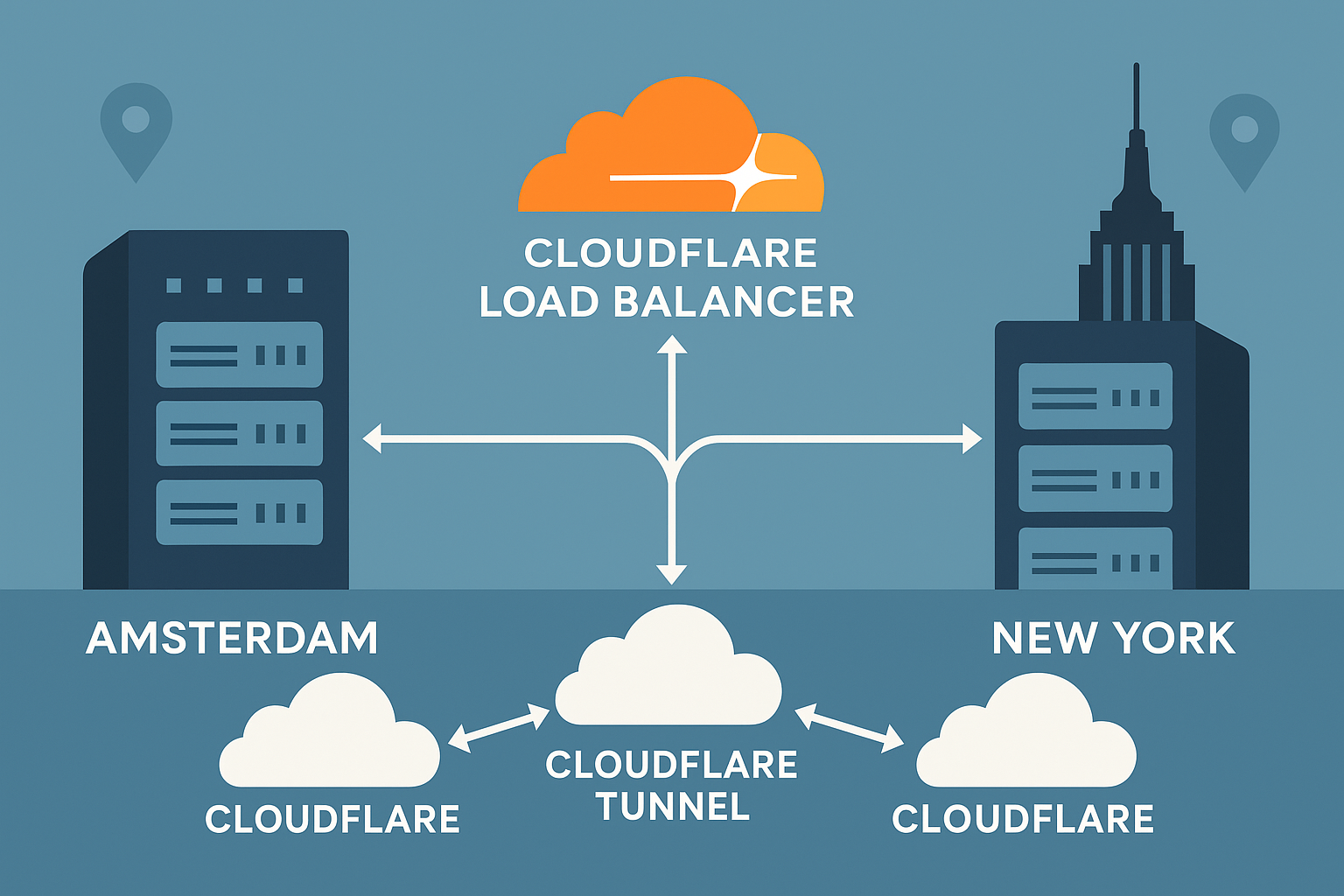
For optimal performance during the encryption process, consider using a high-performance VPS. Onidel VPS in Amsterdam and New York offer AMD EPYC Milan processors with NVMe storage, perfect for intensive cryptographic operations.
Step-by-Step Tutorial
Step 1: Prepare the System and Create Backups
First, update your system and install required packages:
apt update && apt upgrade -y
apt install -y cryptsetup-initramfs dropbear-initramfs busybox-initramfs
Create a complete system backup. For comprehensive backup strategies, refer to our guide on automating encrypted VPS backups:
# Create full system backup
tar -czf /tmp/system-backup.tar.gz --exclude=/tmp --exclude=/proc --exclude=/sys --exclude=/dev /

# Move backup to safe location
cp /tmp/system-backup.tar.gz /external/backup/location/
Step 2: Configure Network Support in Initramfs
Configure network settings for remote unlock capability:
# Edit initramfs configuration
echo "DEVICE=eth0" >> /etc/initramfs-tools/initramfs.conf
echo "IP=dhcp" >> /etc/initramfs-tools/initramfs.conf

# Configure dropbear for SSH access
echo 'DROPBEAR_OPTIONS="-p 2222 -s -j -k -I 300"' >> /etc/dropbear/initramfs/dropbear.conf
Add your SSH public key for initramfs access:
# Copy your public key to initramfs
cp ~/.ssh/authorized_keys /etc/dropbear/initramfs/authorized_keys
chmod 600 /etc/dropbear/initramfs/authorized_keys
Step 3: Create LUKS2 Container on Free Space
Identify available disk space and create a LUKS container:
# Check current disk usage
df -h
lsblk

# Create a sparse file for LUKS container (adjust size as needed)
fallocate -l 10G /luks-container.img

# Create LUKS2 container
cryptsetup luksFormat --type luks2 /luks-container.img

# Open the container
cryptsetup luksOpen /luks-container.img encrypted_root
Step 4: Migrate System to Encrypted Container
Create filesystem and migrate data:
# Create ext4 filesystem in encrypted container
mkfs.ext4 /dev/mapper/encrypted_root

# Mount encrypted filesystem
mkdir /mnt/encrypted
mount /dev/mapper/encrypted_root /mnt/encrypted

# Copy system data (excluding sensitive mounts)
rsync -avxHAX --progress / /mnt/encrypted/ \
  --exclude=/tmp/* --exclude=/proc/* --exclude=/sys/* \
  --exclude=/dev/* --exclude=/mnt/* --exclude=/luks-container.img
Step 5: Configure Crypttab and Update Fstab
Configure automatic unlocking:
# Get LUKS UUID
LUKS_UUID=$(cryptsetup luksUUID /luks-container.img)
echo "UUID: $LUKS_UUID"

# Configure crypttab
echo "encrypted_root UUID=$LUKS_UUID none luks,discard" >> /etc/crypttab

# Update fstab in encrypted system
ROOT_UUID=$(blkid -s UUID -o value /dev/mapper/encrypted_root)
sed -i "s|^[^#].*/ |UUID=$ROOT_UUID / |" /mnt/encrypted/etc/fstab
Step 6: Update GRUB Configuration
Modify GRUB to support encrypted root:
# Chroot into encrypted system
for dir in /dev /proc /sys /run; do
  mount --bind $dir /mnt/encrypted$dir
done
chroot /mnt/encrypted

# Update GRUB configuration
echo 'GRUB_ENABLE_CRYPTODISK=y' >> /etc/default/grub
echo "GRUB_CMDLINE_LINUX=\"root=UUID=$ROOT_UUID cryptopts=target=encrypted_root,source=UUID=$LUKS_UUID\"" >> /etc/default/grub

# Update initramfs and GRUB
update-initramfs -u
update-grub
Step 7: Test Remote SSH Unlock
Create unlock script for convenience:
# Create unlock script
cat << 'EOF' > /mnt/encrypted/usr/local/bin/unlock-luks.sh
#!/bin/bash
echo "Enter LUKS passphrase:"
read -s passphrase
echo "$passphrase" | cryptsetup luksOpen /luks-container.img encrypted_root
echo "Encrypted root unlocked successfully"
EOF

chmod +x /mnt/encrypted/usr/local/bin/unlock-luks.sh
Exit chroot and prepare for testing:
# Exit chroot
exit
for dir in /run /sys /proc /dev; do
  umount /mnt/encrypted$dir
done
umount /mnt/encrypted
cryptsetup luksClose encrypted_root
Best Practices
Security Considerations
- Key Management: Use strong passphrases and consider hardware security modules for production environments
- Network Security: Change default SSH ports and implement proper firewall rules. Consider our CIS hardening guide
- Backup Strategy: Maintain encrypted backups of LUKS headers:
cryptsetup luksHeaderBackup /luks-container.img --header-backup-file luks-header.backup - Access Control: Implement multi-factor authentication for critical systems
Performance Optimization
- Cipher Selection: LUKS2 with AES-XTS provides optimal performance on modern processors
- Storage Considerations: Enable TRIM support for SSD optimization with the
discardoption - Memory Usage: Monitor system memory during encryption process. For memory optimization tips, see our OOM prevention guide
Monitoring and Maintenance
- Health Checks: Regularly verify LUKS container integrity
- Key Rotation: Periodically rotate encryption keys and passphrases
- Recovery Testing: Test unlock procedures and backup restoration regularly
- Performance Monitoring: Use tools from our VPS benchmarking guide to monitor encryption overhead
Conclusion
Successfully implementing in-place LUKS2 encryption on Ubuntu 24.04 provides enterprise-grade data protection without the need for complete system reinstallation. This approach ensures your sensitive data remains secure while maintaining operational continuity and remote management capabilities.
The combination of LUKS2 encryption, systemd integration, and remote SSH unlock creates a robust security foundation suitable for production environments. Remember to test the entire unlock process in a safe environment before implementing on critical systems.
For hosting encrypted workloads that demand both security and performance, explore our high-performance VPS solutions in Amsterdam and New York, featuring AMD EPYC processors and enterprise-grade NVMe storage with automatic backups and advanced security features like AMD-SEV for additional hardware-level protection.