Deploy Production-Ready vLLM Server on Ubuntu 24.04 VPS: Complete Guide with OpenAI API, Docker Compose & TLS
Introduction
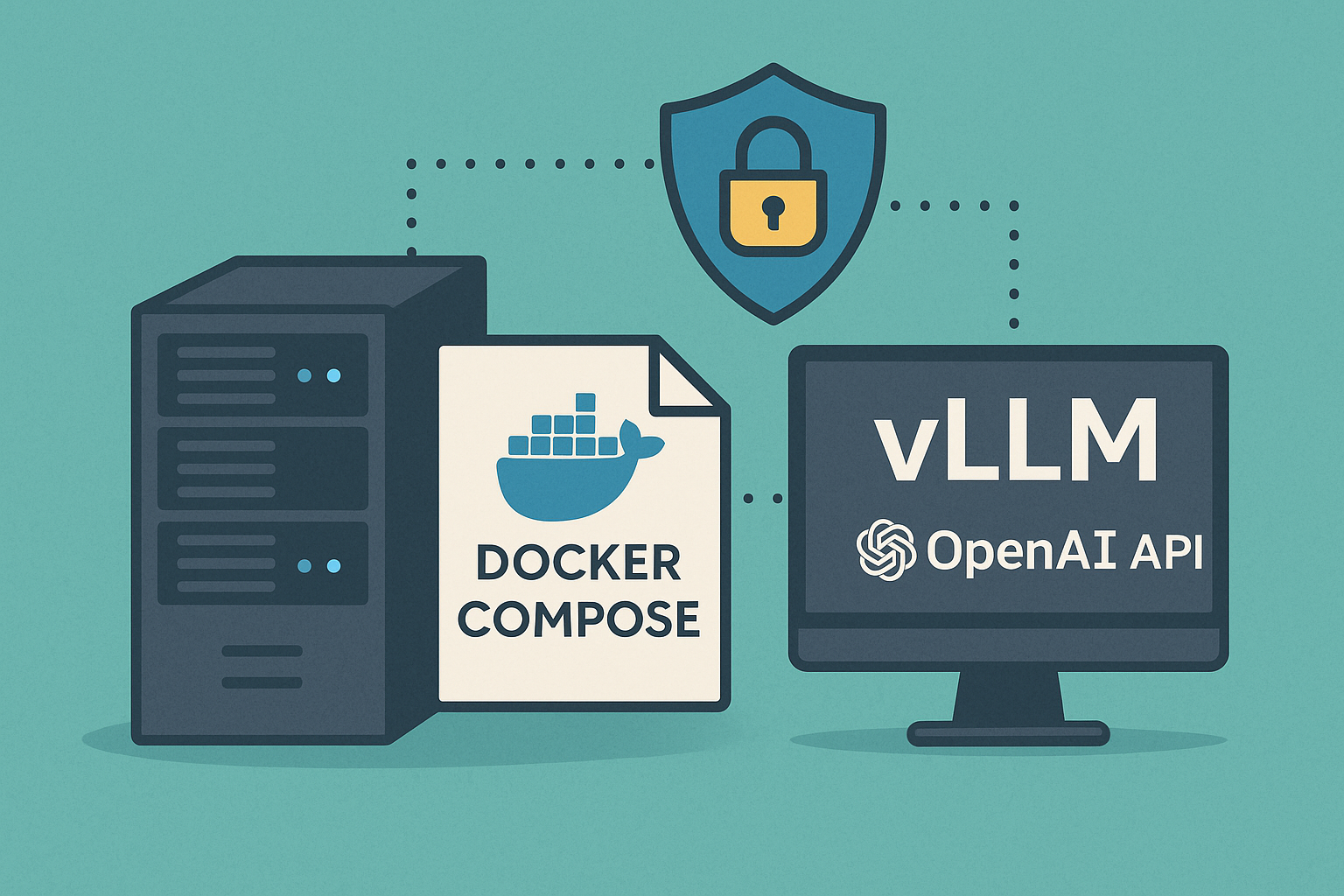
Large Language Models (LLMs) are transforming how we interact with AI, but deploying them in production requires careful consideration of performance, scalability, and integration. vLLM has emerged as one of the fastest serving engines for LLMs, offering OpenAI-compatible APIs, advanced memory management, and excellent throughput optimization.
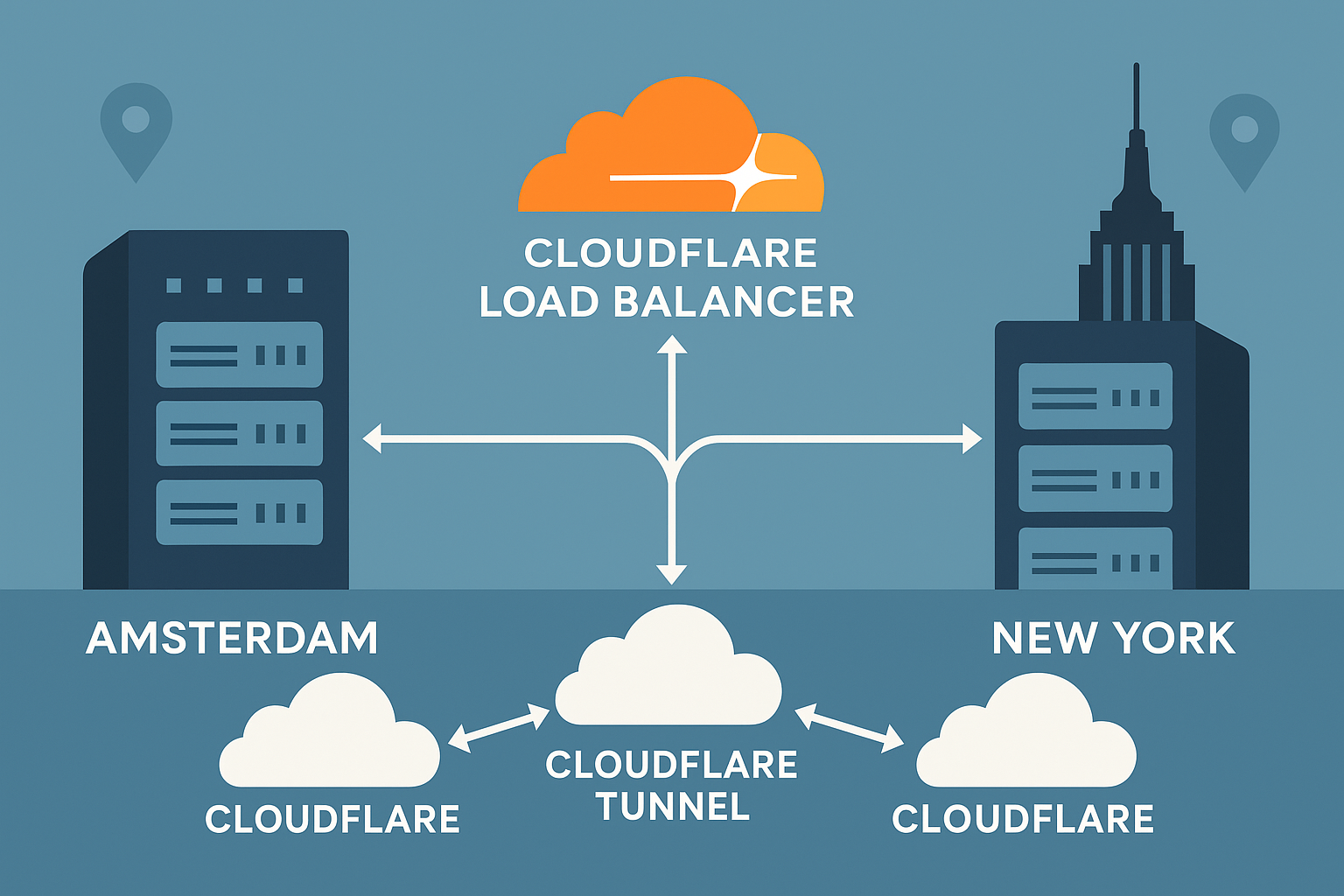
In this comprehensive tutorial, you’ll learn how to deploy a production-ready vLLM server on Ubuntu 24.04 LTS with Docker Compose, complete with token caching, CPU/GPU profiles, TLS encryption, and monitoring. This setup is particularly effective on Onidel VPS in Amsterdam or Onidel VPS in New York due to their high-performance EPYC Milan processors and low-latency connectivity to major AI model repositories.
Prerequisites
Before starting this deployment, ensure you have:
- Ubuntu 24.04 LTS VPS with minimum 16GB RAM (32GB+ recommended for larger models)
- Docker Engine 24.0+ and Docker Compose v2.20+
- NVIDIA GPU (optional but recommended) with CUDA 12.1+ drivers
- Root or sudo access for system configuration
- Domain name (optional) for TLS certificate automation
- 50GB+ available storage for model downloads and caching
If you need to set up monitoring infrastructure or automated backups, consider reviewing our related guides.
Step-by-Step Tutorial
Step 1: System Preparation and Docker Installation
First, update your Ubuntu 24.04 system and install required dependencies:
# Update system packages
sudo apt update && sudo apt upgrade -y

# Install Docker and Docker Compose
sudo apt install -y docker.io docker-compose-v2 curl jq

# Add user to docker group
sudo usermod -aG docker $USER
newgrp docker

# Verify installation
docker --version
docker compose version
For GPU support, install NVIDIA Container Runtime:
# Install NVIDIA Container Runtime
curl -fsSL https://nvidia.github.io/libnvidia-container/gpgkey | sudo gpg --dearmor -o /usr/share/keyrings/nvidia-container-toolkit-keyring.gpg
echo "deb [signed-by=/usr/share/keyrings/nvidia-container-toolkit-keyring.gpg] https://nvidia.github.io/libnvidia-container/stable/deb/$(. /etc/os-release; echo $ID$VERSION_ID)/$(dpkg --print-architecture) /" | sudo tee /etc/apt/sources.list.d/nvidia-container-toolkit.list

sudo apt update
sudo apt install -y nvidia-container-toolkit
sudo nvidia-ctk runtime configure --runtime=docker
sudo systemctl restart docker
Step 2: vLLM Docker Compose Configuration
Create a project directory and Docker Compose configuration:
mkdir -p /opt/vllm-server
cd /opt/vllm-server
Create the main docker-compose.yml file:
version: '3.8'

services:
  vllm-server:
    image: vllm/vllm-openai:v0.2.7
    container_name: vllm-server
    restart: unless-stopped
    ports:
      - "8000:8000"
    volumes:
      - ./models:/root/.cache/huggingface
      - ./config:/app/config
    environment:
      - CUDA_VISIBLE_DEVICES=0
      - HF_HOME=/root/.cache/huggingface
    command: >
      --model microsoft/DialoGPT-medium
      --host 0.0.0.0
      --port 8000
      --served-model-name gpt-3.5-turbo
      --max-model-len 2048
      --token-cache-size 1000
      --enable-batched-prefill
      --disable-log-requests
    deploy:
      resources:
        reservations:
          devices:
            - driver: nvidia
              count: 1
              capabilities: [gpu]
    healthcheck:
      test: ["CMD", "curl", "-f", "http://localhost:8000/health"]
      interval: 30s
      timeout: 10s
      retries: 3

  nginx:
    image: nginx:1.25-alpine
    container_name: vllm-proxy
    restart: unless-stopped
    ports:
      - "80:80"
      - "443:443"
    volumes:
      - ./nginx.conf:/etc/nginx/nginx.conf:ro
      - ./ssl:/etc/ssl/certs
    depends_on:
      - vllm-server

volumes:
  models:
  ssl:
Step 3: Nginx Reverse Proxy with TLS
Create an Nginx configuration for load balancing and TLS termination:
events {
    worker_connections 1024;
}

http {
    upstream vllm_backend {
        server vllm-server:8000;
        keepalive 32;
    }

    # Rate limiting
    limit_req_zone $binary_remote_addr zone=api:10m rate=10r/s;

    server {
        listen 80;
        server_name your-domain.com;
        return 301 https://$server_name$request_uri;
    }

    server {
        listen 443 ssl http2;
        server_name your-domain.com;

        # TLS Configuration
        ssl_certificate /etc/ssl/certs/server.crt;
        ssl_certificate_key /etc/ssl/certs/server.key;
        ssl_protocols TLSv1.2 TLSv1.3;
        ssl_ciphers ECDHE-RSA-AES128-GCM-SHA256:ECDHE-RSA-AES256-GCM-SHA384;
        ssl_prefer_server_ciphers on;

        # Headers for API compatibility
        add_header X-Content-Type-Options nosniff;
        add_header X-Frame-Options DENY;
        add_header X-XSS-Protection "1; mode=block";

        location /v1/ {
            limit_req zone=api burst=20 nodelay;

            proxy_pass http://vllm_backend;
            proxy_http_version 1.1;
            proxy_set_header Upgrade $http_upgrade;
            proxy_set_header Connection "upgrade";
            proxy_set_header Host $host;
            proxy_set_header X-Real-IP $remote_addr;
            proxy_set_header X-Forwarded-For $proxy_add_x_forwarded_for;
            proxy_set_header X-Forwarded-Proto $scheme;

            # Streaming support
            proxy_buffering off;
            proxy_cache off;
            proxy_read_timeout 300s;
            proxy_connect_timeout 75s;
        }

        location /health {
            proxy_pass http://vllm_backend/health;
            access_log off;
        }
    }
}
Step 4: CPU/GPU Profiles and Performance Tuning
Create profile-based configurations for different deployment scenarios. Create profiles/ directory:
mkdir -p profilesCreate profiles/gpu.yml for GPU deployment:
version: '3.8'

services:
  vllm-server:
    extends:
      file: docker-compose.yml
      service: vllm-server
    environment:
      - CUDA_VISIBLE_DEVICES=0
      - VLLM_USE_MODELSCOPE=False
    command: >
      --model microsoft/DialoGPT-medium
      --host 0.0.0.0
      --port 8000
      --tensor-parallel-size 1
      --gpu-memory-utilization 0.9
      --max-num-seqs 256
      --enable-chunked-prefill
Create profiles/cpu.yml for CPU-only deployment:
version: '3.8'

services:
  vllm-server:
    extends:
      file: docker-compose.yml
      service: vllm-server
    deploy:
      resources:
        limits:
          cpus: '8.0'
          memory: 16G
    environment:
      - VLLM_CPU_ONLY=1
    command: >
      --model microsoft/DialoGPT-medium
      --host 0.0.0.0
      --port 8000
      --max-num-seqs 64
      --max-model-len 1024
Step 5: Token Caching and Model Optimization
Configure advanced caching and optimization features:
# Create cache directories
mkdir -p models cache config

# Set proper permissions
chmod 755 models cache config
Create config/cache-config.json:
{
  "enable_lora": false,
  "max_loras": 1,
  "max_lora_rank": 16,
  "enable_prefix_caching": true,
  "disable_sliding_window": false,
  "use_v2_block_manager": true,
  "swap_space": 4,
  "cpu_offload_gb": 8
}
Step 6: Deployment and Testing
Deploy using your chosen profile:
# For GPU deployment
docker compose -f docker-compose.yml -f profiles/gpu.yml up -d

# For CPU-only deployment
docker compose -f docker-compose.yml -f profiles/cpu.yml up -d

# Check service status
docker compose ps
docker compose logs vllm-server
Test the OpenAI-compatible API:
# Test completions endpoint
curl -X POST "http://localhost:8000/v1/chat/completions" \
  -H "Content-Type: application/json" \
  -H "Authorization: Bearer your-api-key" \
  -d '{
    "model": "gpt-3.5-turbo",
    "messages": [
      {"role": "user", "content": "Hello, how are you?"}
    ],
    "max_tokens": 100,
    "temperature": 0.7
  }'

# Test streaming
curl -X POST "http://localhost:8000/v1/chat/completions" \
  -H "Content-Type: application/json" \
  -d '{
    "model": "gpt-3.5-turbo",
    "messages": [{"role": "user", "content": "Tell me a story"}],
    "stream": true
  }'
Best Practices
Performance Optimization
- Model Selection: Choose models appropriate for your hardware constraints. Smaller models like DialoGPT-medium work well on CPU-only setups
- Memory Management: Configure
--gpu-memory-utilizationto 0.85-0.9 to prevent OOM errors while maximizing throughput - Batch Processing: Enable
--enable-chunked-prefilland--enable-batched-prefillfor better request batching - Connection Pooling: Use Nginx keepalive connections to reduce connection overhead
Security Considerations
- API Authentication: Implement proper API key validation and rate limiting
- TLS Configuration: Use strong cipher suites and disable older TLS versions
- Network Isolation: Run services in isolated Docker networks with minimal port exposure
- Regular Updates: Keep vLLM, Docker, and system packages updated for security patches
Warning: Always test configuration changes in a staging environment before applying to production deployments.
Monitoring and Maintenance
Implement comprehensive monitoring for your vLLM deployment:
# Add monitoring service to docker-compose.yml
  prometheus:
    image: prom/prometheus:v2.45.0
    ports:
      - "9090:9090"
    volumes:
      - ./prometheus.yml:/etc/prometheus/prometheus.yml
    command:
      - '--config.file=/etc/prometheus/prometheus.yml'
      - '--storage.tsdb.path=/prometheus'
      - '--web.console.libraries=/etc/prometheus/console_libraries'
      - '--web.console.templates=/etc/prometheus/consoles'
For comprehensive observability, consider implementing the full observability stack with OpenTelemetry integration.
Conclusion
You’ve successfully deployed a production-ready vLLM server on Ubuntu 24.04 with enterprise-grade features including OpenAI-compatible APIs, token caching, TLS encryption, and flexible CPU/GPU profiles. This setup provides excellent performance for AI applications while maintaining security and scalability.
The high-performance EPYC Milan processors available on Onidel VPS in Amsterdam and Onidel VPS in New York are particularly well-suited for LLM inference workloads, offering optimal performance for both CPU and GPU deployments.
Consider exploring our guides on RAG stack deployment or vector database comparisons to enhance your AI infrastructure further. With proper monitoring, security practices, and regular maintenance, your vLLM deployment will serve as a robust foundation for AI-powered applications.