S3 Object Storage Mounting on Ubuntu 24.04 VPS: Complete Performance Guide with s3fs, rclone, goofys, and JuiceFS
Introduction
Mounting S3-compatible object storage directly to your Ubuntu VPS filesystem enables seamless integration with existing applications while leveraging cost-effective cloud storage. Whether you’re building a content delivery pipeline, implementing backup solutions, or creating a hybrid storage architecture, choosing the right mounting solution is critical for performance and reliability.
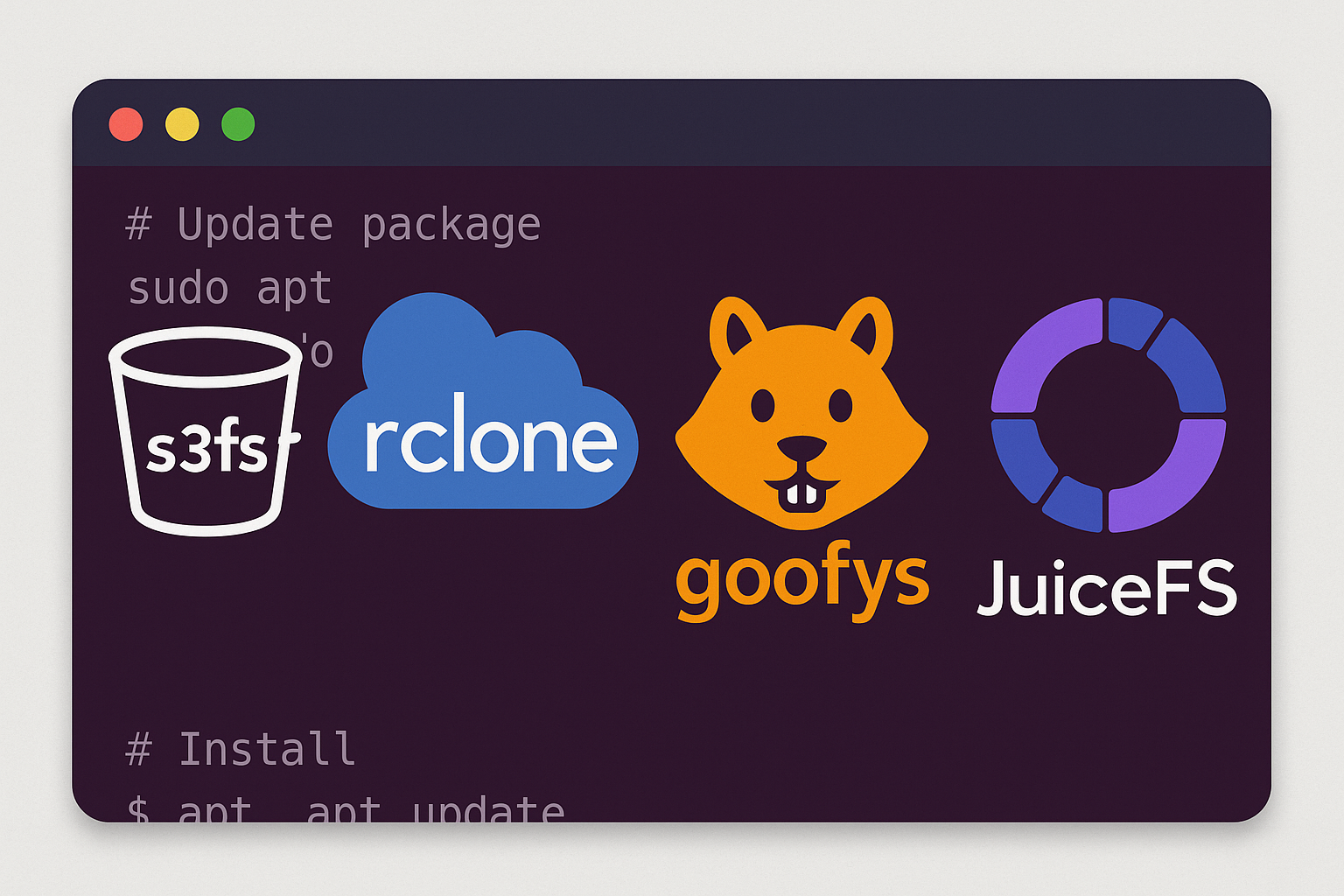
This comprehensive guide compares four popular S3 mounting solutions: s3fs-fuse, rclone mount, goofys, and JuiceFS. We’ll benchmark their performance, explore caching strategies, and implement security best practices on Ubuntu 24.04 LTS. By the end of this tutorial, you’ll understand which solution best fits your workload requirements and how to optimize it for production use.
Prerequisites
Before we begin, ensure you have:
- Ubuntu 24.04 LTS VPS with at least 2GB RAM and 2 vCPU cores
- Root or sudo access to the VPS
- S3-compatible storage credentials (AWS S3, Cloudflare R2, etc.)
- Basic knowledge of Linux filesystem operations
- Internet connectivity for package installation
Recommended VPS Specifications:
- RAM: 4GB+ for optimal caching performance
- Storage: 20GB+ NVMe SSD for local cache
- Network: High bandwidth for S3 transfers
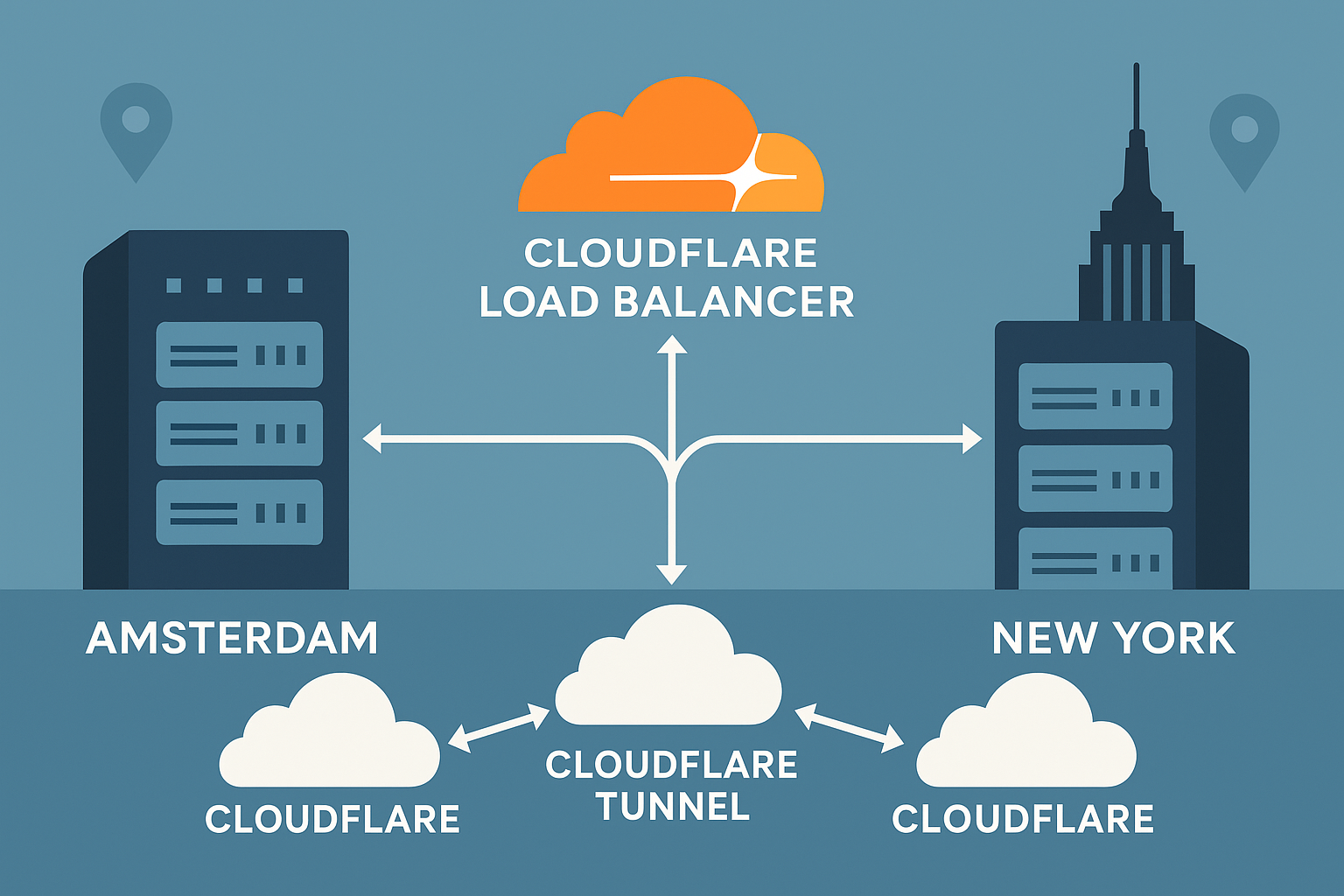
For testing purposes, consider using an Onidel VPS in Amsterdam or New York for excellent connectivity to major S3 providers.
Step-by-Step Tutorial
1. Environment Setup and Dependencies
First, update your system and install common dependencies:
# Update package repositories
sudo apt update && sudo apt upgrade -y

# Install essential tools
sudo apt install -y curl wget unzip fuse3 build-essential pkg-config fio

# Create test directories
sudo mkdir -p /mnt/{s3fs,rclone,goofys,juicefs}
sudo mkdir -p /tmp/s3-cache
sudo chown $USER:$USER /tmp/s3-cache
2. Installing and Configuring s3fs-fuse
s3fs-fuse is the most mature S3 filesystem solution, offering POSIX compatibility with extensive caching options.
# Install s3fs-fuse
sudo apt install -y s3fs

# Create credentials file
echo "ACCESS_KEY:SECRET_KEY" > ~/.passwd-s3fs
chmod 600 ~/.passwd-s3fs

# Mount with optimized settings
s3fs your-bucket-name /mnt/s3fs \
  -o passwd_file=~/.passwd-s3fs \
  -o use_cache=/tmp/s3-cache \
  -o ensure_diskfree=1024 \
  -o parallel_count=30 \
  -o multipart_size=64 \
  -o max_stat_cache_size=100000 \
  -o stat_cache_expire=900 \
  -o enable_noobj_cache \
  -o no_check_certificate
3. Installing and Configuring rclone mount
rclone provides excellent flexibility and supports numerous cloud storage providers with advanced caching capabilities.
# Install latest rclone
curl https://rclone.org/install.sh | sudo bash

# Configure S3 remote (interactive)
rclone config

# Alternative: Create config programmatically
mkdir -p ~/.config/rclone
cat > ~/.config/rclone/rclone.conf << EOF
[s3remote]
type = s3 provider = AWS env_auth = false access_key_id = YOUR_ACCESS_KEY secret_access_key = YOUR_SECRET_KEY region = us-east-1 EOF # Mount with VFS caching rclone mount s3remote:your-bucket-name /mnt/rclone \ –daemon \ –vfs-cache-mode writes \ –vfs-cache-max-size 2G \ –vfs-cache-max-age 1h \ –buffer-size 32M \ –s3-chunk-size 32M \ –s3-upload-concurrency 16
4. Installing and Configuring goofys
goofys is designed for high-performance S3 access with minimal memory overhead, ideal for read-heavy workloads.
# Download and install goofys
wget https://github.com/kahing/goofys/releases/latest/download/goofys
chmod +x goofys
sudo mv goofys /usr/local/bin/

# Set up AWS credentials
mkdir -p ~/.aws
cat > ~/.aws/credentials << EOF
[default]
aws_access_key_id = YOUR_ACCESS_KEY aws_secret_access_key = YOUR_SECRET_KEY EOF # Mount with optimizations goofys \ –stat-cache-ttl 5m \ –type-cache-ttl 5m \ –dir-mode 0755 \ –file-mode 0644 \ –region us-east-1 \ your-bucket-name /mnt/goofys
5. Installing and Configuring JuiceFS
JuiceFS is an enterprise-grade distributed filesystem with advanced features like compression and encryption.
# Install JuiceFS
curl -sSL https://d.juicefs.com/install | sh -

# Install Redis for metadata storage
sudo apt install -y redis-server
sudo systemctl enable --now redis-server

# Format JuiceFS filesystem
juicefs format \
  --storage s3 \
  --bucket https://your-bucket-name.s3.amazonaws.com \
  --access-key YOUR_ACCESS_KEY \
  --secret-key YOUR_SECRET_KEY \
  redis://localhost:6379/1 \
  myjfs

# Mount JuiceFS
juicefs mount \
  --cache-dir /tmp/s3-cache \
  --cache-size 2048 \
  --buffer-size 300 \
  --writeback \
  --background \
  redis://localhost:6379/1 \
  /mnt/juicefs
6. Performance Benchmarking
Let’s benchmark each solution using fio to understand their performance characteristics:
# Create benchmark script
cat > ~/s3-benchmark.sh << 'EOF'
#!/bin/bash

MOUNT_POINTS=("/mnt/s3fs" "/mnt/rclone" "/mnt/goofys" "/mnt/juicefs")
SOLUTIONS=("s3fs" "rclone" "goofys" "juicefs")

for i in ${!MOUNT_POINTS[@]}; do
  echo "\n=== Testing ${SOLUTIONS[$i]} ==="
  MOUNT_POINT=${MOUNT_POINTS[$i]}

  # Sequential write test
  echo "Sequential Write Test:"
  fio --name=seqwrite --filename=${MOUNT_POINT}/testfile \
    --rw=write --bs=1M --size=100M --numjobs=1 --runtime=60 \
    --group_reporting --time_based=1

  # Sequential read test
  echo "Sequential Read Test:"
  fio --name=seqread --filename=${MOUNT_POINT}/testfile \
    --rw=read --bs=1M --numjobs=1 --runtime=60 \
    --group_reporting --time_based=1

  # Random I/O test
  echo "Random I/O Test:"
  fio --name=randio --filename=${MOUNT_POINT}/testfile \
    --rw=randrw --bs=4k --size=100M --numjobs=4 --runtime=60 \
    --group_reporting --time_based=1

  # Cleanup
  rm -f ${MOUNT_POINT}/testfile
done
EOF

chmod +x ~/s3-benchmark.sh
./s3-benchmark.sh
Best Practices
Security Configuration
Credential Management:
- Use IAM roles instead of access keys when possible
- Set restrictive file permissions on credential files (
chmod 600) - Store credentials in
/etc/passwd-s3fsfor system-wide access - Consider using AWS STS temporary credentials
# Secure credential setup
sudo tee /etc/passwd-s3fs > /dev/null << EOF
ACCESS_KEY:SECRET_KEY
EOF

sudo chmod 600 /etc/passwd-s3fs
sudo chown root:root /etc/passwd-s3fs
Performance Optimization
Caching Strategies:
- s3fs: Use local disk cache with
use_cacheoption - rclone: Enable VFS caching for better write performance
- goofys: Tune stat cache TTL based on workload patterns
- JuiceFS: Leverage distributed cache for multi-node setups
Network Optimization:
- Use appropriate chunk sizes (32MB-64MB for large files)
- Enable parallel uploads/downloads
- Choose regions close to your VPS location
- Consider S3-compatible alternatives like Cloudflare R2
Monitoring and Maintenance
Set up monitoring to track mount health and performance:
# Create health check script
cat > /usr/local/bin/s3-mount-check.sh << 'EOF'
#!/bin/bash
MOUNTS=("/mnt/s3fs" "/mnt/rclone" "/mnt/goofys" "/mnt/juicefs")

for mount in "${MOUNTS[@]}"; do
  if ! mountpoint -q "$mount"; then
    echo "WARNING: $mount is not mounted"
    # Add remount logic here
  fi
done
EOF

chmod +x /usr/local/bin/s3-mount-check.sh

# Add to crontab
echo "*/5 * * * * /usr/local/bin/s3-mount-check.sh" | crontab -
Conclusion
Each S3 mounting solution offers unique advantages for different use cases:
- s3fs-fuse: Best for POSIX compliance and mature ecosystem
- rclone mount: Excellent for multi-cloud environments and flexible caching
- goofys: Optimal for read-heavy workloads requiring low memory usage
- JuiceFS: Superior for enterprise applications needing advanced features
When deploying S3 mounts in production, consider your specific requirements: consistency needs, performance patterns, and operational complexity. The combination of proper caching, security configuration, and monitoring will ensure reliable access to your object storage.
For robust cloud infrastructure supporting these workloads, explore our high-performance VPS solutions in Amsterdam and New York, featuring NVMe storage and low-latency connectivity to major cloud providers. Our automated backup solutions can further enhance your storage strategy.