
Complete Guide to Extending Disk Storage on Ubuntu 24.04 VPS: LVM and Non-LVM Expansion Tutorial
Introduction
Running out of disk space on your Ubuntu 24.04 VPS is a common challenge that can bring your applications to a halt. Whether you’re hosting a database that’s growing rapidly or storing increasing amounts of user data, expanding your storage capacity is often the quickest solution. However, simply increasing your VPS disk allocation isn’t enough – you need to properly extend your filesystem to utilize the additional space.
This comprehensive tutorial covers both LVM (Logical Volume Manager) and non-LVM setups, showing you how to perform online filesystem expansion for ext4 and XFS filesystems without downtime. You’ll learn to identify your storage configuration, safely expand partitions and logical volumes, and resize filesystems while your system remains operational.
Prerequisites
Before starting this tutorial, ensure you have:
- Ubuntu 24.04 LTS VPS with root or sudo access
- Minimum 2GB RAM for safe filesystem operations
- Current system backup (strongly recommended)
- SSH access to your server
- Basic familiarity with Linux command line
Required packages:
lvm2(for LVM operations)parted(for partition management)xfsprogs(if using XFS filesystem)
Warning: Always create a backup before performing disk operations. While these procedures are designed to be safe, disk operations carry inherent risks.
Step-by-Step Tutorial
Step 1: Identify Your Storage Configuration
First, determine whether your system uses LVM or traditional partitioning:
# Check current disk usage
df -h

# List block devices
lsblk

# Check for LVM volumes
sudo pvs
sudo vgs
sudo lvs
If the LVM commands return results, you’re using LVM. If they show “No volume groups found,” you have a traditional partition setup.
Step 2: Expand VPS Disk Allocation
First, increase your disk size through your VPS provider’s control panel. For Onidel VPS in Amsterdam or New York, this process is seamless with instant provisioning.
After expanding, verify the new disk size is recognized:
# Rescan SCSI bus to detect new size
echo 1 | sudo tee /sys/class/block/vda/device/rescan

# Verify new size
sudo fdisk -l /dev/vda
Step 3: Non-LVM Expansion
For systems without LVM, extend the partition and then the filesystem:
# Use growpart to extend the partition
sudo growpart /dev/vda 1

# For ext4 filesystems
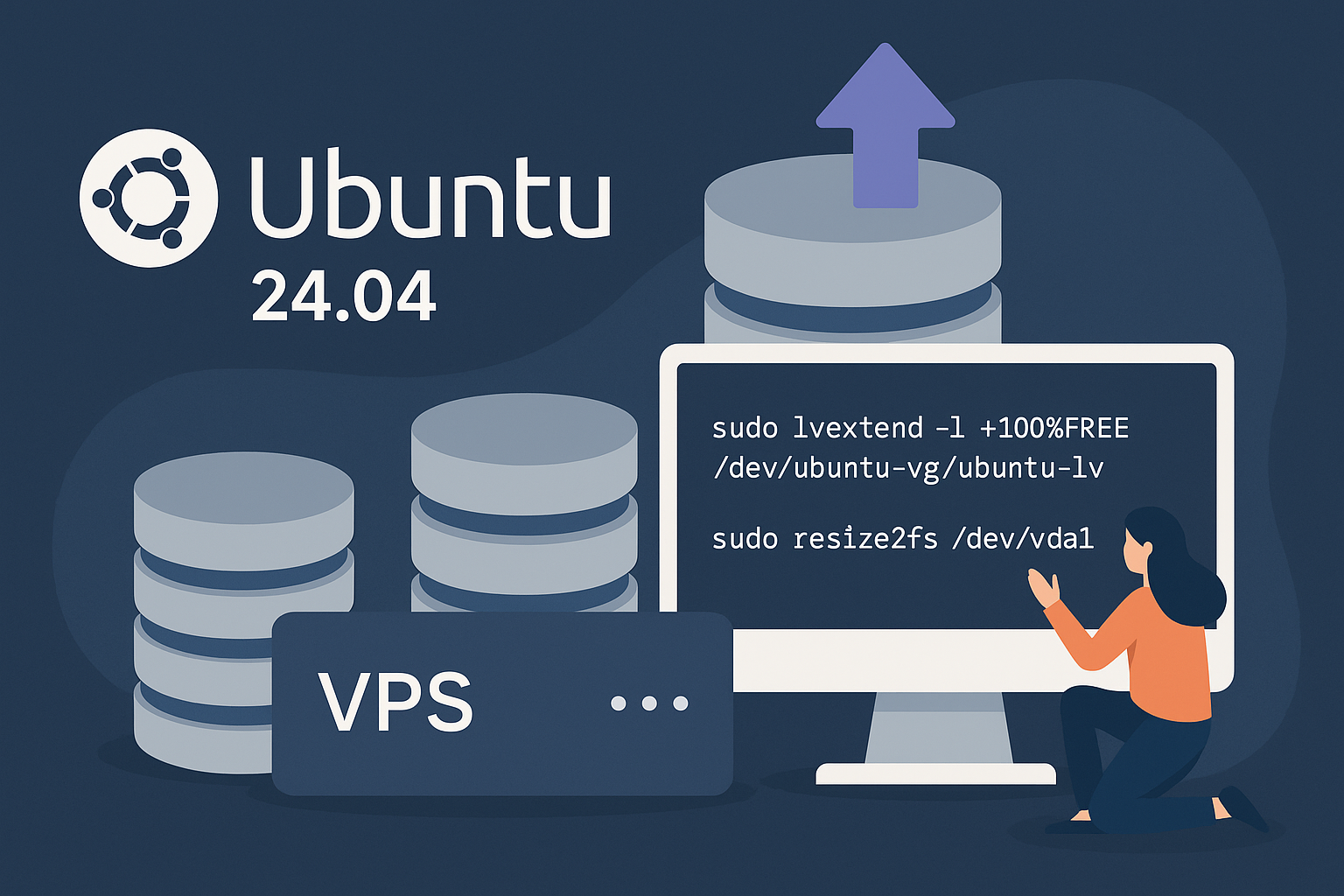
sudo resize2fs /dev/vda1

# For XFS filesystems
sudo xfs_growfs /
Verify the expansion:
df -h /Step 4: LVM Expansion
For LVM setups, the process involves extending the physical volume, volume group, and logical volume:
# Extend the partition containing the PV
sudo growpart /dev/vda 2

# Extend the physical volume
sudo pvresize /dev/vda2

# Extend the logical volume (adjust paths as needed)
sudo lvextend -l +100%FREE /dev/ubuntu-vg/ubuntu-lv

# Resize the filesystem
# For ext4:
sudo resize2fs /dev/ubuntu-vg/ubuntu-lv

# For XFS:
sudo xfs_growfs /
Step 5: Verification and Monitoring
Confirm the expansion was successful:
# Check filesystem usage
df -h

# For LVM systems, verify volume sizes
sudo pvs
sudo vgs
sudo lvs

# Check filesystem integrity
sudo fsck -n /dev/vda1  # or your device path
Best Practices
Backup Strategy: Always maintain recent backups before disk operations. Consider using automated encrypted backups to S3-compatible storage for peace of mind.
Monitoring: Set up disk space monitoring to prevent future space issues. Configure alerts when usage exceeds 80% to allow time for proactive expansion.
Performance Considerations: Large filesystem operations can impact I/O performance temporarily. Schedule expansions during maintenance windows when possible.
LVM Advantages: Consider using LVM for new deployments as it provides more flexibility for future expansions and backup operations.
Filesystem Choice: For detailed guidance on choosing between ext4, XFS, and other options, refer to our filesystem comparison guide.
Conclusion
Successfully expanding disk storage on Ubuntu 24.04 VPS requires understanding your storage configuration and following the appropriate expansion method. Whether using LVM or traditional partitions, the process can be completed online without service interruption when done correctly.
The key steps involve expanding the underlying storage, growing partitions or physical volumes, extending logical volumes (if using LVM), and finally resizing the filesystem. Regular monitoring and proactive capacity planning help prevent emergency situations.
For reliable VPS hosting with flexible storage options and instant provisioning, explore our high-performance EPYC-powered Amsterdam VPS and New York VPS solutions. With features like advanced memory management and triple-replicated NVMe storage, your applications will have the resources they need to grow.