
Complete Guide to Migrating from Redis to Valkey: Zero-Downtime Ubuntu Docker Setup with Sentinel, Clustering, and Performance Benchmarks (2025)
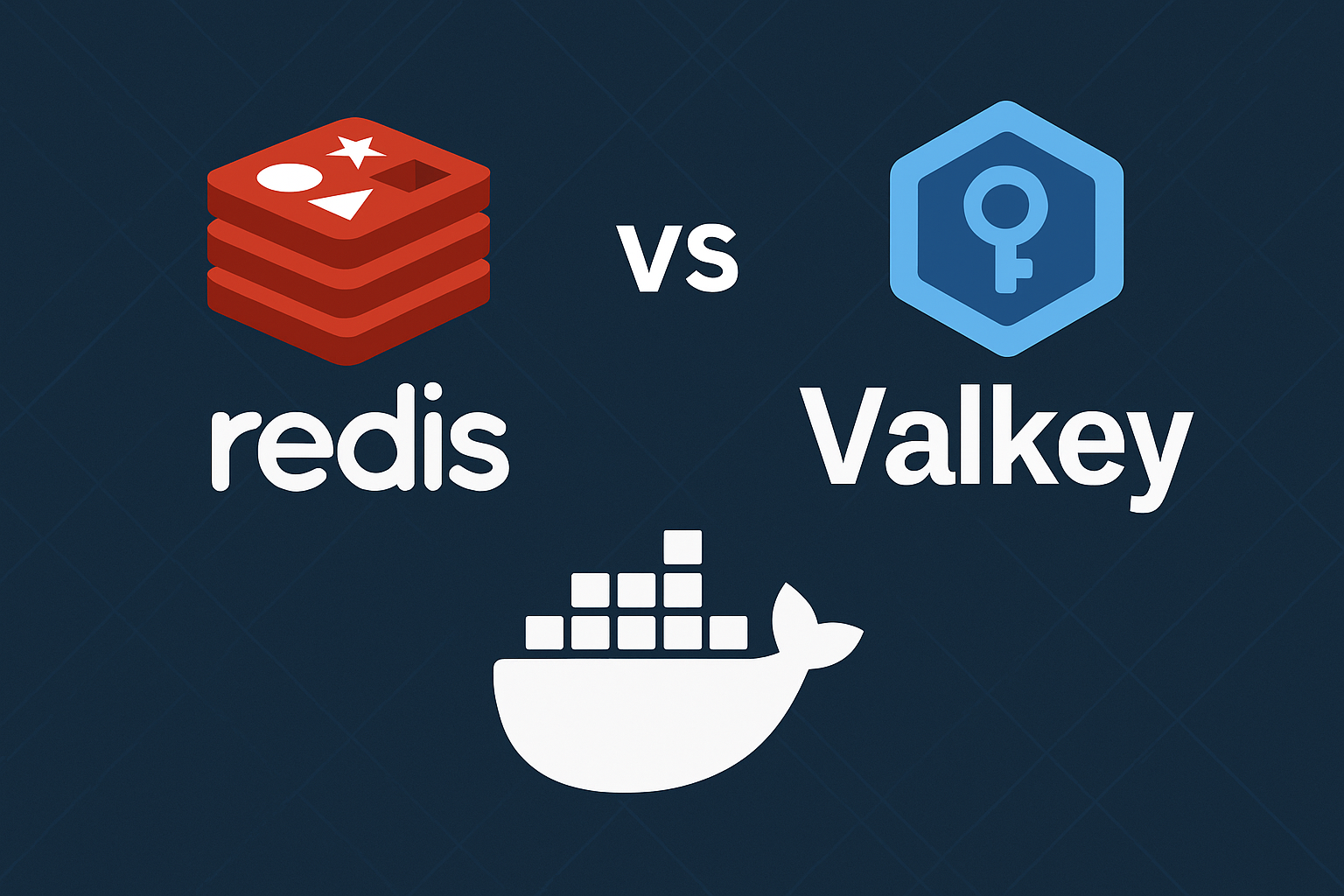
With Redis dual-licensing changes affecting many organizations, Valkey has emerged as the leading open-source alternative. As a Linux Foundation project and true Redis fork, Valkey offers complete drop-in compatibility while maintaining the performance characteristics that made Redis popular. This comprehensive guide walks you through migrating from Redis to Valkey 7 on Ubuntu 24.04 using Docker Compose with zero-downtime strategies.
Whether you’re running a simple cache or complex multi-node deployments, this tutorial covers everything from basic migration to advanced Sentinel and cluster configurations.
Understanding Valkey vs Redis
Valkey maintains 100% wire protocol compatibility with Redis, meaning your existing applications require zero code changes. The project was created by AWS, Google, Oracle, and other major cloud providers to ensure a truly open-source alternative after Redis moved to dual licensing.
Key advantages of Valkey include:
- BSD 3-Clause License – Always open source
- Drop-in replacement – Same commands, same protocol
- Active development – Backed by major cloud providers
- Performance parity – Built from the same codebase
For organizations considering their options, our detailed comparison Redis vs Valkey vs KeyDB on VPS in 2025 provides comprehensive benchmarks and migration guidance.
Prerequisites
Before starting this migration, ensure you have:
- Ubuntu 24.04 LTS VPS with at least 2GB RAM and 2 vCPUs
- Docker and Docker Compose installed
- Existing Redis instance (version 6.0+ recommended)
- Root or sudo access
- Network connectivity between source and target systems
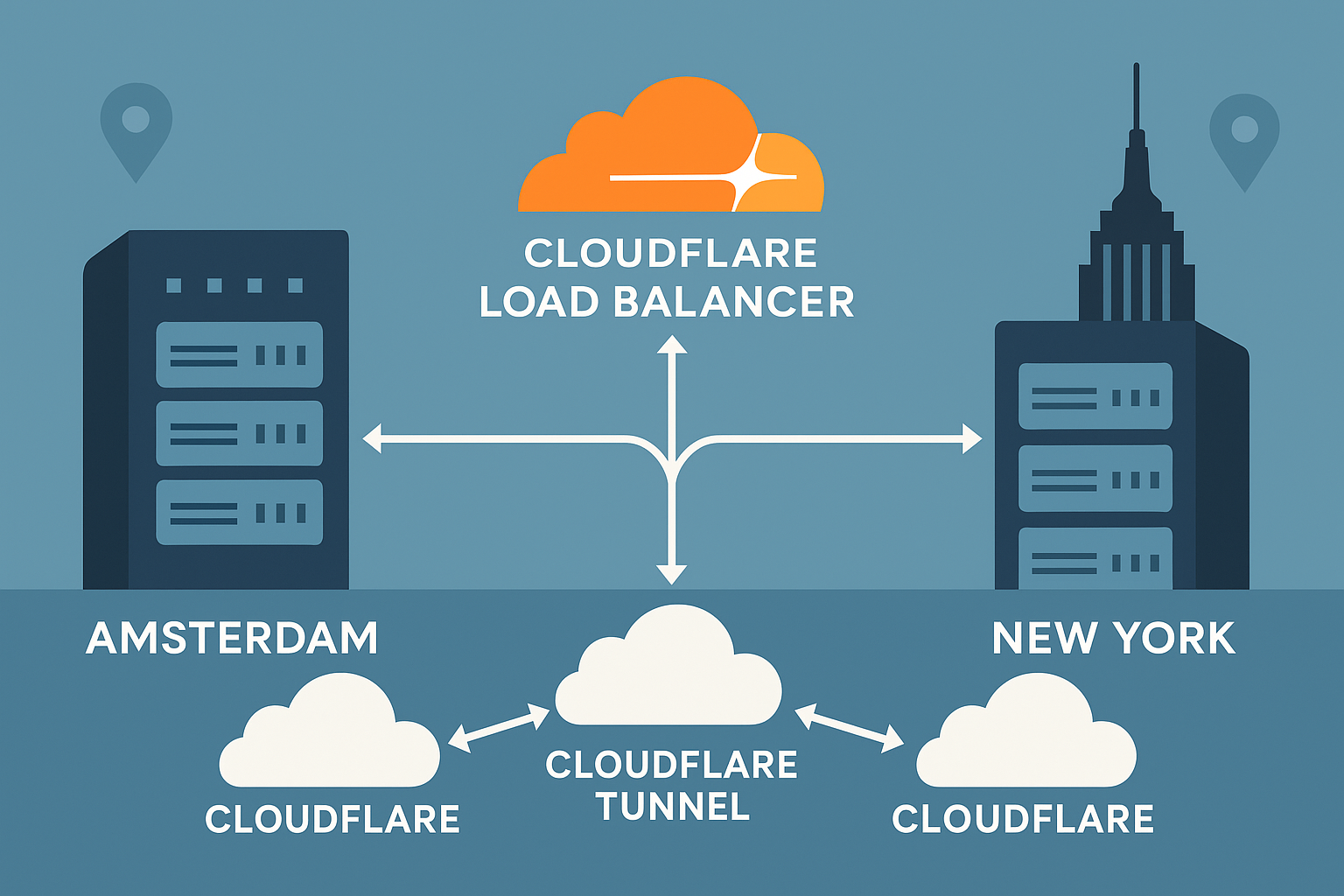
For optimal performance during migration, consider deploying on high-performance infrastructure like Onidel VPS in Amsterdam or Onidel VPS in New York with EPYC Milan processors and NVMe storage.
Install Docker Requirements
First, update your system and install Docker:
sudo apt update && sudo apt upgrade -y
sudo apt install -y docker.io docker-compose-plugin
sudo systemctl enable --now docker
sudo usermod -aG docker $USER
Log out and back in for group changes to take effect.
Step-by-Step Migration Tutorial
Step 1: Prepare Valkey Configuration
Create a dedicated directory for your Valkey deployment:
mkdir -p ~/valkey-migration/{data,config,logs}
cd ~/valkey-migration
Create a optimized Valkey configuration file:
cat > config/valkey.conf << 'EOF'
# Basic server configuration
bind 0.0.0.0
port 6379
protected-mode yes
requirepass your-secure-password-here

# Memory and persistence
maxmemory 1gb
maxmemory-policy allkeys-lru
save 900 1
save 300 10
save 60 10000
stop-writes-on-bgsave-error yes
rdbcompression yes
rdbchecksum yes
dbfilename dump.rdb
dir /data

# Logging
loglevel notice
logfile /logs/valkey.log

# Network and security
tcp-keepalive 300
timeout 0
tcp-backlog 511

# Performance tuning
EOF
Step 2: Create Docker Compose Setup
Create a production-ready Docker Compose configuration:
cat > docker-compose.yml << 'EOF'
version: '3.8'

services:
  valkey-primary:
    image: valkey/valkey:7-alpine
    container_name: valkey-primary
    restart: unless-stopped
    ports:
      - "6379:6379"
    volumes:
      - ./config/valkey.conf:/usr/local/etc/valkey/valkey.conf:ro
      - ./data:/data
      - ./logs:/logs
    command: valkey-server /usr/local/etc/valkey/valkey.conf
    networks:
      - valkey-net
    healthcheck:
      test: ["CMD", "valkey-cli", "-a", "your-secure-password-here", "ping"]
      interval: 10s
      timeout: 5s
      retries: 3
      start_period: 30s
    deploy:
      resources:
        limits:
          memory: 1.5G
          cpus: '1.0'
        reservations:
          memory: 512M
          cpus: '0.5'

networks:
  valkey-net:
    driver: bridge
EOF
Step 3: Data Migration Strategies
Start your Valkey instance:
docker compose up -d valkey-primary

# Verify it's running
docker compose logs valkey-primary
docker compose exec valkey-primary valkey-cli -a your-secure-password-here ping
Option A: Live Replication (Zero Downtime)
Configure Valkey as a replica of your existing Redis:
# Connect to Valkey and configure replication
docker compose exec valkey-primary valkey-cli -a your-secure-password-here

# In Valkey CLI:
REPLICAOF redis-host 6379
CONFIG SET masterauth redis-password
Option B: Export/Import Method
# Export from Redis
redis-cli -h redis-host -p 6379 -a redis-password --rdb backup.rdb

# Stop Valkey, copy data, restart
docker compose stop valkey-primary
cp backup.rdb data/dump.rdb
chown 999:999 data/dump.rdb
docker compose start valkey-primary
Step 4: Sentinel Configuration for High Availability
For production environments, deploy Valkey with Sentinel for automatic failover:
cat >> docker-compose.yml << 'EOF'

  valkey-replica:
    image: valkey/valkey:7-alpine
    container_name: valkey-replica
    restart: unless-stopped
    volumes:
      - ./config/replica.conf:/usr/local/etc/valkey/valkey.conf:ro
      - ./data-replica:/data
    command: valkey-server /usr/local/etc/valkey/valkey.conf
    networks:
      - valkey-net
    depends_on:
      - valkey-primary

  valkey-sentinel-1:
    image: valkey/valkey:7-alpine
    container_name: valkey-sentinel-1
    restart: unless-stopped
    ports:
      - "26379:26379"
    volumes:
      - ./config/sentinel.conf:/usr/local/etc/valkey/sentinel.conf:ro
    command: valkey-sentinel /usr/local/etc/valkey/sentinel.conf
    networks:
      - valkey-net
    depends_on:
      - valkey-primary
EOF
Create sentinel configuration:
cat > config/sentinel.conf << 'EOF'
port 26379
sentinel monitor mymaster valkey-primary 6379 1
sentinel auth-pass mymaster your-secure-password-here
sentinel down-after-milliseconds mymaster 5000
sentinel parallel-syncs mymaster 1
sentinel failover-timeout mymaster 10000
EOF
Best Practices
Security Hardening
- Change default passwords – Use strong, unique passwords
- Enable TLS encryption – For production deployments
- Restrict network access – Use firewalls and VPN access
- Regular updates – Keep Valkey images updated
Performance Optimization
Configure kernel parameters for optimal performance:
echo 'vm.overcommit_memory = 1' | sudo tee -a /etc/sysctl.conf
echo 'net.core.somaxconn = 65535' | sudo tee -a /etc/sysctl.conf
sudo sysctl -p
Monitoring and Alerting
Implement comprehensive monitoring with our OpenTelemetry and Grafana observability stack guide to track performance metrics and ensure smooth operation.
Performance Benchmarks
Test your Valkey deployment performance:
# Basic performance test
docker compose exec valkey-primary valkey-benchmark -a your-secure-password-here -n 100000 -c 50

# Specific operation benchmarks
docker compose exec valkey-primary valkey-benchmark -a your-secure-password-here -t set,get -n 100000 -q
For comprehensive VPS performance evaluation, reference our complete Linux VPS benchmarking guide.
Conclusion
Migrating from Redis to Valkey provides a future-proof, fully open-source solution without sacrificing performance or compatibility. The drop-in replacement nature means minimal disruption to your applications, while the backing of major cloud providers ensures long-term viability.
This migration strategy works excellently on high-performance infrastructure. For production deployments requiring low latency and high availability, consider deploying across multiple regions with Amsterdam VPS and New York VPS instances, leveraging advanced features like NVMe storage and EPYC Milan processors for optimal database performance.
Next steps: Implement automated backups, set up cross-region replication for disaster recovery, and integrate with your existing monitoring infrastructure to ensure robust production operation.